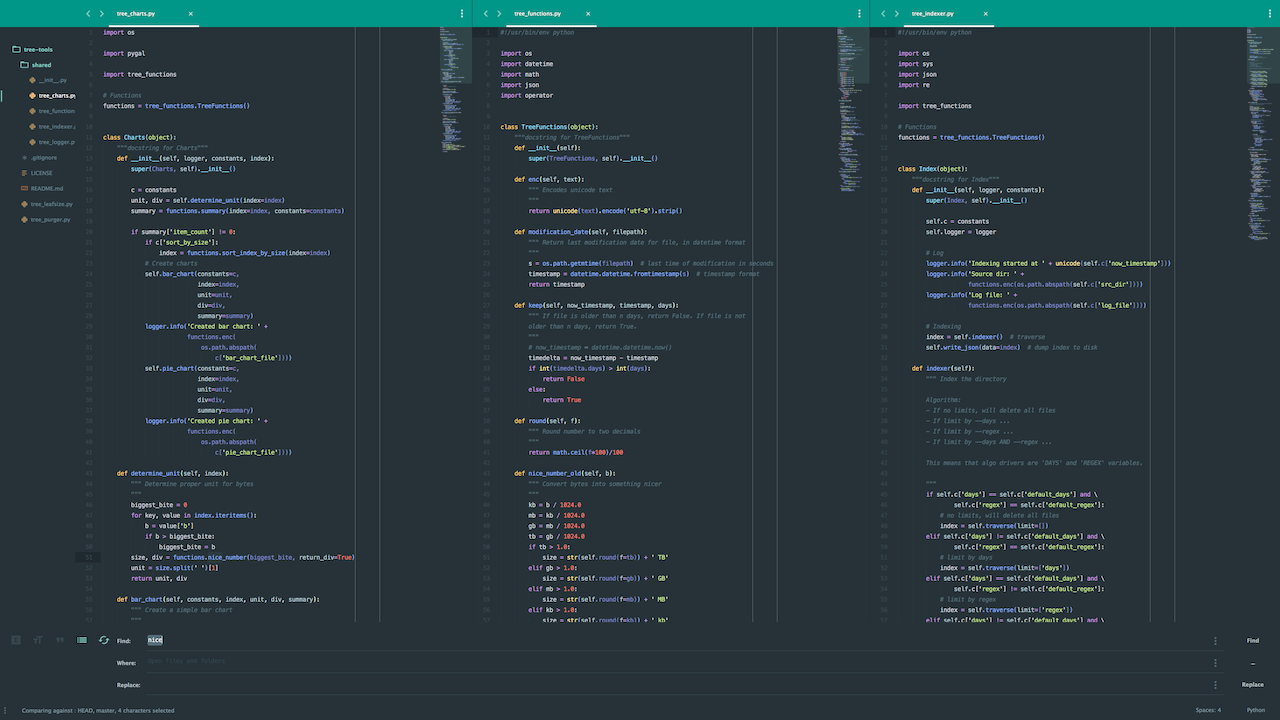
This is my Sublime Text 3 setup, with ambitions to create a custom Python IDE.
All of the below assumes you’ve already installed Package Control, the package manager for Sublime Text.
General packages
-
SublimeLinter- Faster than in ST2 -
BracketHighlighter- Bracket and tag highlighter -
Sublimerge Pro- Great tool for checking diffs
Python IDE setup
-
SublimeLinter-flake8- Flake and PEP8 checking -
Jedi - Python Autocompletion- Also known as SublimeJEDI -
requirementstxt- Syntax highlighting for requirements.txt files
Please note, SublimeLinter-flake8 requires you to pip install flake8.
It’s possible to use e.g.
Anaconda for custom build systems, or you can just use ctrl+b (or cmd+b on OS X) to run the current Python script.
I’m also defining some custom stuff in Python.sublime-settings. The easiest way to edit this file is to open Sublime -> Preferences -> Settings – More -> Syntax-specific – User while viewing a Python file:
{
  "auto_indent": true,
  "rulers": [
    72,
    79
  ],
  "smart_indent": true,
  "tab_size": 4,
  "translate_tabs_to_spaces": true,
  "use_tab_stops": true
}
JSON
-
SublimeLinter-JSON- JSON linter -
Pretty JSON- Pretty JSON
Docker
-
Dockerfile Syntax Highlighting- Yup, that’s what it does
Git
-
GitGutter- shows file changes in the gutter -
GitSavvy- manage the current git repo directly through Sublime Text
Saltstack
-
SaltStack-related syntax highlighting and snippets- Pretty much self-explanatory
Markdown
-
Markdown Preview- Opens your browser for MD preview
Maya
-
MayaSublime- Write code in Sublime, execute it in Maya
General UI improvements
-
SideBarEnhancements- adds a bunch of useful commands to the sidebar
Theme
-
Material Theme- Awesome material inspired theme -
Material Appbar- Awesome title bar/tabs bar replacement
In addition to the settings mentioned previously, I use the following theme settings in Sublime -> Preferences -> Settings -> User:
{
  "always_show_minimap_viewport": true,
  "bold_folder_labels": true,
  "color_scheme": "Packages/Material Theme/schemes/Material-Theme.tmTheme",
  "detect_indentation": true,
  "font_size": 12,
  "ignored_packages":
  [
    "Vintage"
  ],
  "indent_guide_options":
  [
    "draw_normal",
    "draw_active"
  ],
  "line_padding_bottom": 3,
  "line_padding_top": 3,
  "material_theme_compact_sidebar": true,
  "material_theme_small_tab": true,
  "material_theme_panel_separator": true,
  "overlay_scroll_bars": "enabled",
  "theme": "Material-Theme.sublime-theme",
  "wide_caret": true
}
Closing comments
The only thing I really miss from Atom, another great but unfortunately much slower editor, is the git status highlighting of files in the tree view. This gives you a super nice overview of the files you’re working on.
I’d like to see a real terminal inside of Sublime Text. To my knowledge, this doesn’t exist (yet). There are a few options like
Terminal or
Terminality, but they don’t really offer the kind of terminal you’d expect in an IDE.
All settings files can be examined closer in my dotfiles repository.
I’ll update this post whenever my Sublime Text 3 setup changes permanently.
I’d love to hear if you think I’ve missed out on a crucial package, and especially with Python development in mind. If so, let me know in the comments below!